Creating your first project
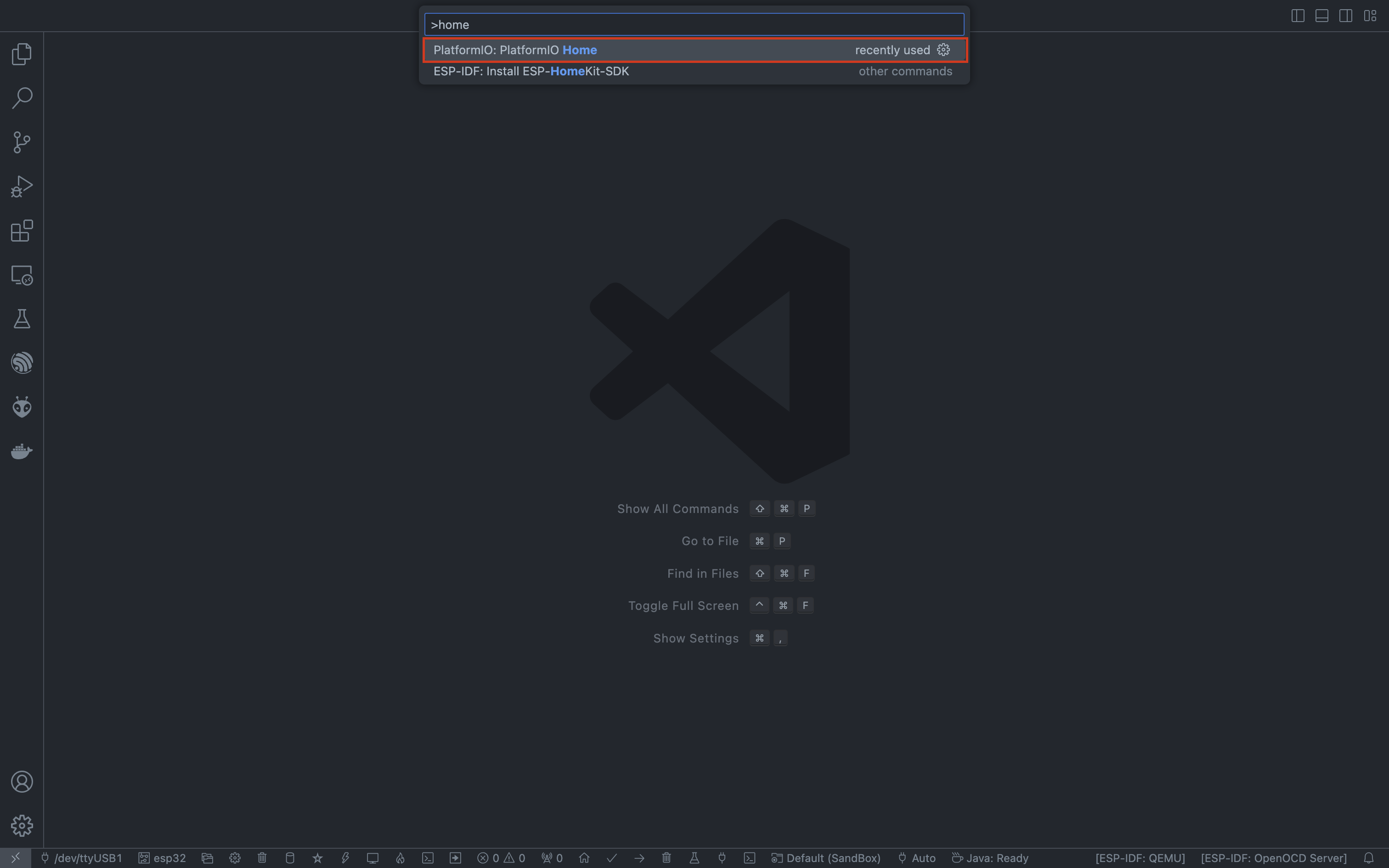
Once you have VS Code open, head over to the PlatformIO home page by typing in >platformIO: PlatofrmIO Home through the VS Code command palette (Respective shortcuts are show below). The PlatformIO home page serves as your central hub for managing your projects, libraries, and boards/microcontrollers.
| Operating System | Shortcut |
|---|---|
| Windows/Linux | Ctrl + Shift + P |
| macOS | ⌘ + Shift + P |
Please note that sometimes you may get an error when attempting to open the PlatformIO home for the first time or right after VS Code startup. This is due to PlatformIO not being fully initialized as a VSCode extension. Simply wait a couple seconds and try again.
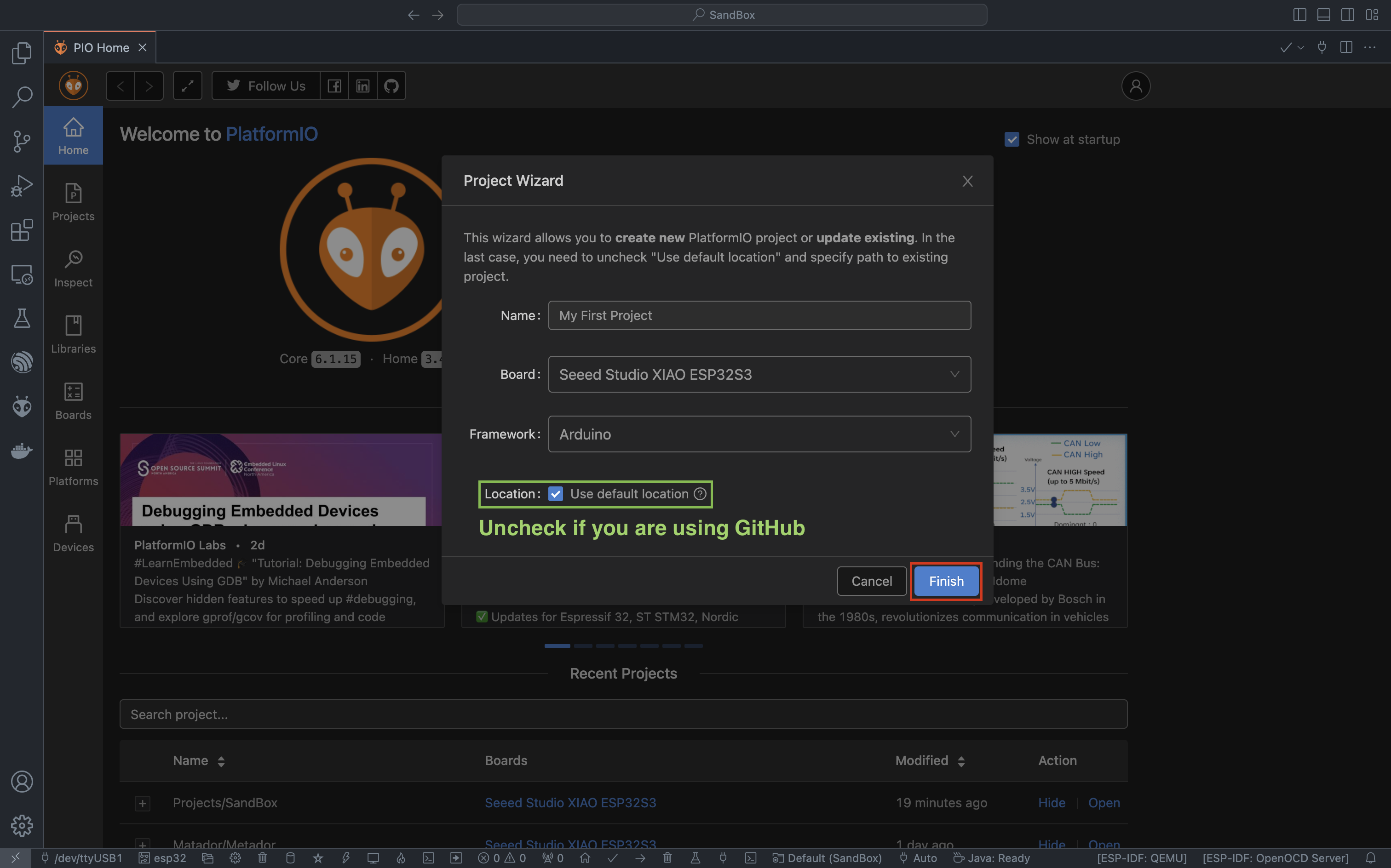
Now, you can create a new project by clicking the appropriately labeled New Project button. Pick a project name and Make sure to select the appropriate board type. If you are using an ESP32, simply check the metal housing for the part number (e.g. Wroom32/S3/C3). If you are using a devkit, try to use the devkit part number instead if available. When picking a framework you will likely be provided with several options. Assuming you are working with an ESP32, you will have to pick between Espidf and Arduino. While Espidf provides you with lower level access to the chip, it requires a deeper understanding of c++. For most projects, the Arduino framework is your best pick. If you are using github for your project, make sure to untick the “use default location” checkbox and appropriately select your repository folder for generating your project. Once all the fields are filled in you can proceed to generating your project.
File Hierarchy
Coming from Arduino IDE, one of the first differences you will likely notice is the different file structure. All of your scripts are now located in the src folder as shown below. You will also notice the lack of a project.ino file. It has been replaced with main.cpp.
Project Name
└── src
    └── main.cpp
Building, Deploying, and Serial Monitor
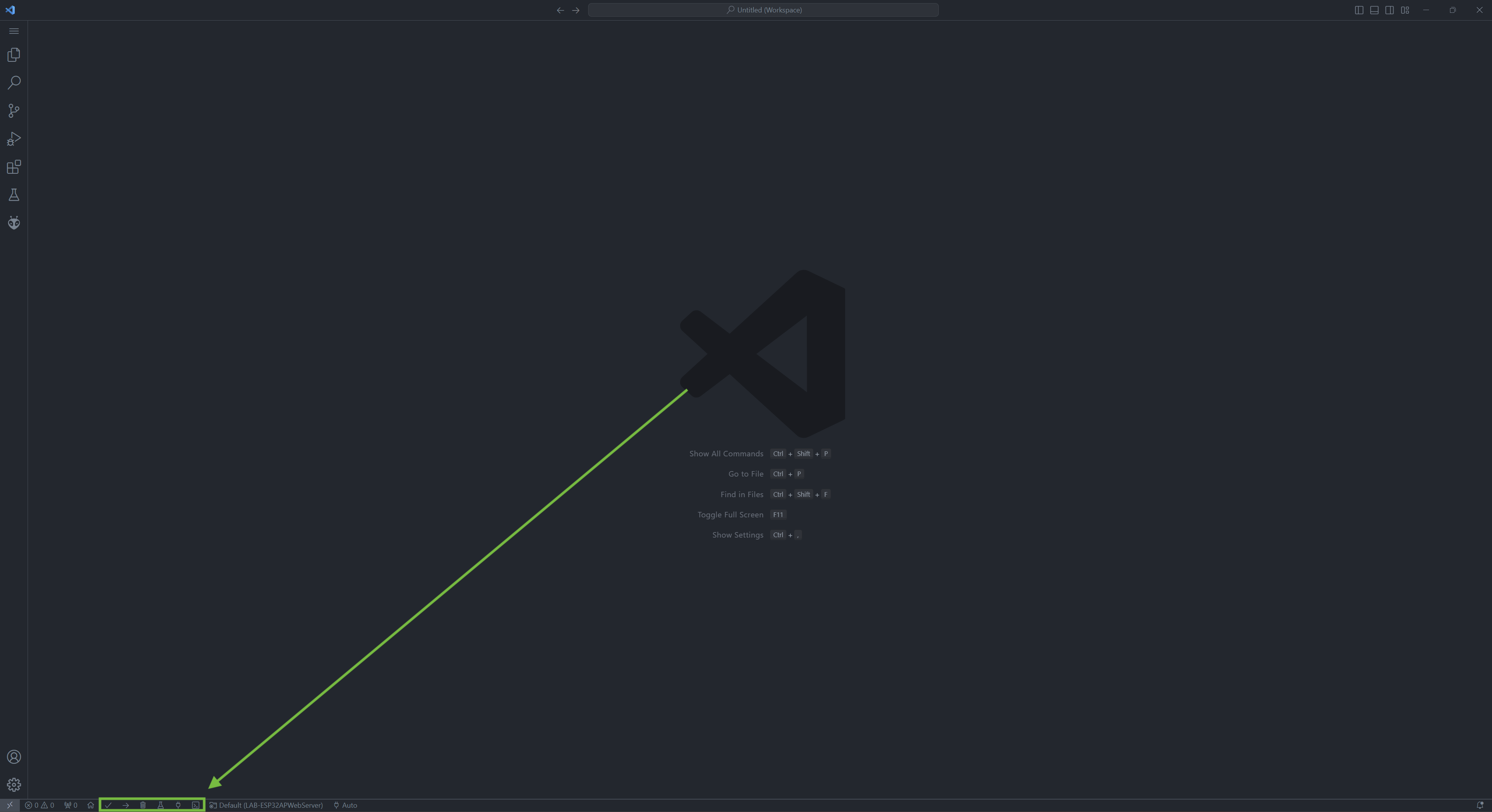
Unlike Arduino IDE, the Build, Deploy, and Serial Monitor buttons are located on the bottom left as shown below. Once the terminal is open, you can also access the Serial monitor from the terminal pane.